How to convert an Excel sheet to CSV without losing leading zeros
Spreadsheet tools · Published
Keep ZIP codes, IDs and phone numbers intact when you save a spreadsheet as CSV, and when you open the CSV again.
The short answer
Most of the time your zeros aren't lost when you save the CSV. They're lost when you open it again in Excel, which guesses that 00123 is the number 123. Open the CSV in Notepad or TextEdit first: if you see 00123 there, the file is fine and you only need to import it the right way.
If the zeros really are missing from the file, the cells were plain numbers in your workbook. Fix the column in Excel (format it as Text or give it a custom number format), then save again. Or use a converter that writes what you see, such as Filecon's Excel to CSV.
Two different problems
1. Saving: what ends up in the CSV
A CSV file is plain text. It has no cell formats, so whatever Excel writes is final. When you save with File › Save As and pick a CSV type, Excel writes each cell the way it appears on screen:
- A cell stored as text (typed as
'00123or in a column formatted as Text) is written as 00123. - A number with a custom format such as
00000shows as 00123 and is written as 00123. - A plain number shows as 123 and is written as 123. The zeros were gone before you saved.
2. Opening: what Excel does to the CSV
When you double-click a CSV, Excel converts anything that looks like a number into a number. 00123 becomes 123, a 16-digit card or account number loses every digit after the 15th, and codes such as 1-2 may turn into dates. Save the file again and those changes are written into the CSV for good. That second save is how most IDs and ZIP codes really get damaged.
Keep leading zeros in Excel before you save
- Select the column that holds the IDs, ZIP codes or phone numbers.
- Press Ctrl+1 (Cmd+1 on a Mac) to open Format Cells.
- Choose Text, then type or paste the values again. Or choose Custom and enter a code with one zero per digit, such as
00000for five-digit ZIP codes. - Save with File › Save As and pick CSV UTF-8 (Comma delimited) or CSV (Comma delimited).
If you only need a few cells, typing an apostrophe first ('00123) stores the value as text. The apostrophe isn't shown in the cell or written to the CSV.
Open a CSV in Excel without losing zeros
Import with Data › From Text/CSV
Importing lets you tell Excel which columns are text. The steps work in Excel for Microsoft 365 and recent versions on Windows; menus on a Mac can differ.
- Open a blank workbook and go to Data › From Text/CSV.
- Pick your CSV file and select Import.
- In the preview, set Data Type Detection to Do not detect data types to load every column as text. Then select Load.
- If you want numbers in other columns, select Transform Data (called Edit in some versions) instead. Select the ID column, choose Home › Data Type › Text, pick Replace Current, then Close & Load.
Turn off automatic zero removal (Microsoft 365 and Excel 2024)
Newer versions of Excel let you switch off some of these conversions. On Windows go to File › Options › Data; on a Mac go to Excel › Preferences › Edit. Under Automatic Data Conversion, clear Removing leading zeros from numerical text and converting to a number. The same section has options for long numbers and for text that looks like a date. The setting belongs to your copy of Excel, so a colleague opening the same CSV may still lose the zeros.
Google Sheets
- In a new spreadsheet, go to File › Import and upload the CSV.
- Choose an import location and check the separator type.
- Clear Convert text to numbers, dates, and formulas, then select Import data.
With that box cleared, 00123 stays 00123. When you later use File › Download › Comma Separated Values (.csv), the zeros are written to the file.
Convert in your browser with Filecon
Filecon's spreadsheet tools run in your browser, and your file isn't uploaded. They're built around the leading-zero problem.
Excel to CSV: "As displayed" keeps what you see
- Choose an .xlsx, .xls or .ods file (up to 25 MB).
- Pick the sheet and the delimiter: comma, semicolon or tab.
- Leave Values on As displayed. A number formatted as 00123 is written as 00123, and dates keep their format. Choose Raw values if you need plain numbers and YYYY-MM-DD dates instead.
- Check the preview, then select Convert to CSV and download the file.
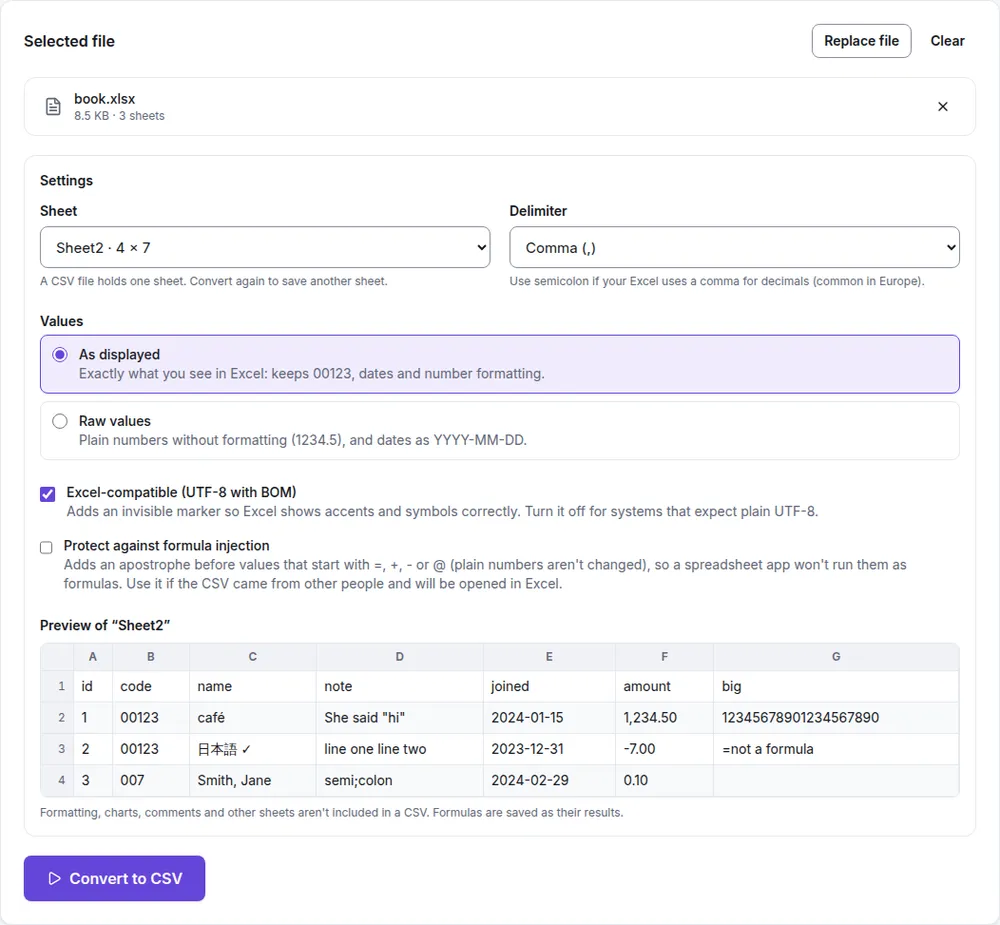
A CSV holds one sheet, so convert again for each sheet you need. Formulas are saved as their results, and the "Excel-compatible" option adds a UTF-8 marker so Excel shows accented letters correctly.
CSV to Excel: Smart mode keeps zeros as text
Going the other way, CSV to Excel builds an .xlsx file you can double-click safely. In Smart mode, a value becomes a number only if Excel would show it back unchanged. Values with leading zeros, more than 15 digits, a leading +, thousands separators or decimal commas stay text, and so do dates. Choose Everything as text if you don't want any conversion at all.
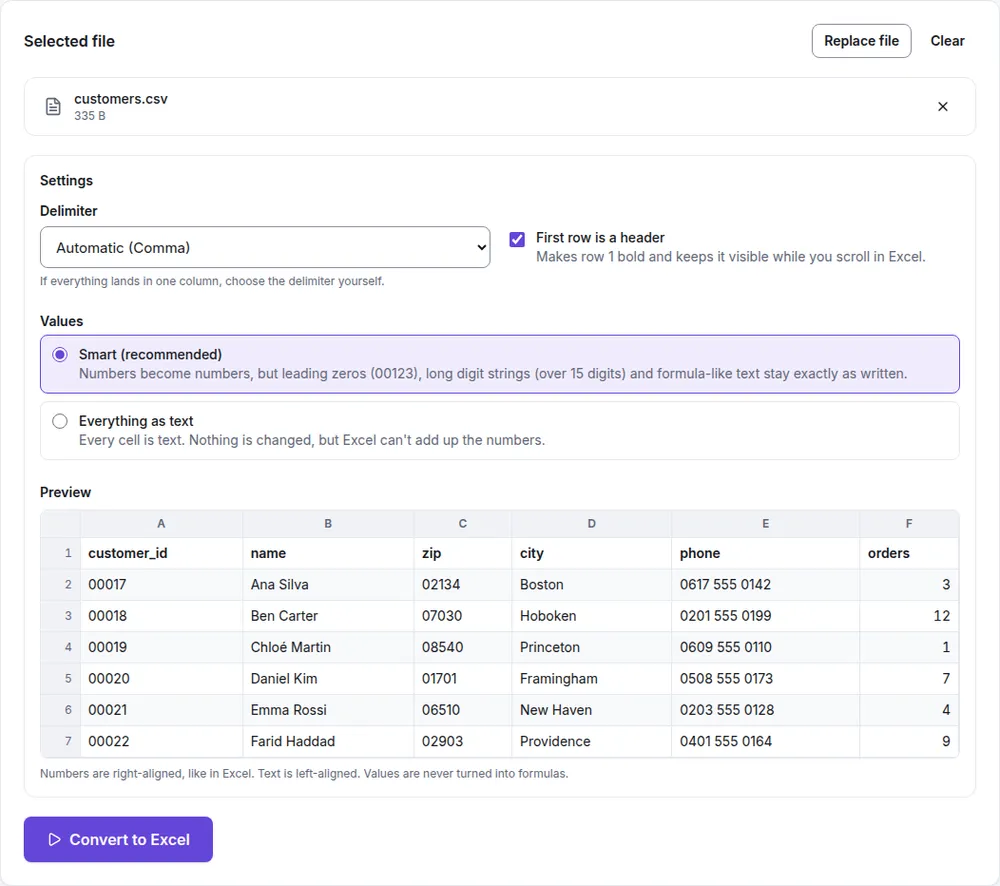
To check a CSV without any app changing it, open it in the CSV viewer. It shows every value exactly as it is in the file, so you can see at once whether the zeros are there.
Troubleshooting
- The zeros are in Notepad but not in Excel. The file is fine. Import it with Data › From Text/CSV, use Google Sheets with conversion off, or convert it to .xlsx first.
- The zeros are missing even in Notepad. They were removed before or during saving. Go back to the original workbook or data source; they can't be recovered from the CSV unless every value has a known length (then a custom format such as
00000can add them back). - Long numbers end in 000 or show as 1.23E+15. Excel keeps 15 significant digits for numbers. Treat card, account and tracking numbers as text, the same way as IDs.
- Someone else keeps breaking the file. Send an .xlsx instead of a CSV, or ask them to import it rather than double-clicking it.
In short
Check the CSV in a text editor to see which problem you have. Keep ID-like columns as text or give them a custom format before saving, and import CSVs instead of double-clicking them. When you'd rather not change settings, convert with "As displayed" in Excel to CSV and open CSVs through CSV to Excel in Smart mode.