How to reduce a PDF's file size for email, and why some PDFs won't shrink
PDF tools · Published
What actually makes a PDF large, what compression can and can't do, and what to try when a PDF is still too big to send.
If your PDF is big because it's full of photos or scanned pages, compressing it usually works well, and it can shrink a lot. If it's mostly text, it's probably already about as small as it can be without making it look worse, and compression will barely change it.
When compression isn't enough, you have three other options: send only the pages that matter, split the file into parts, or share a cloud link instead of an attachment. This guide walks through each one and explains what's going on inside the file.
What makes a PDF large
A PDF is a container. Its size depends on what's inside it:
- Photos and scans take up the most space. A scanned page is a full-page picture, and a photo from a modern phone camera holds far more detail than a document needs on screen.
- Text is stored as characters, not pictures, so it takes very little room. A hundred pages of plain text can be smaller than one photo.
- Fonts are often embedded so the document looks the same everywhere. They add some size, but usually a fixed amount rather than an amount per page.
- Vector graphics such as charts, logos and drawings from design software are stored as shapes. They are usually compact, though very detailed maps or plans can be large.
The quickest way to guess: if you can select and copy the text, and there are few pictures, compression won't achieve much. If the pages are scans or photos, it probably will.
How big can an email attachment be?
Limits vary by email provider, and your recipient's provider may accept less than yours sends. Work and school accounts often have their own limits set by the organization.
| Service | Published limit | What happens above it |
|---|---|---|
| Gmail | 25 MB of attachments | Gmail replaces the attachment with a Google Drive link |
| Outlook.com | 25 MB for the whole message, text included | Microsoft suggests compressing the file or attaching it as a OneDrive link |
Attachments are encoded for sending, which makes them somewhat larger in transit than on your disk. Aim for comfortably under the limit rather than just below it. If you don't know what the recipient's system accepts, smaller is safer.
Compress it with Filecon
Filecon's Compress PDF runs in your browser. Your PDF is processed on your device and isn't uploaded.
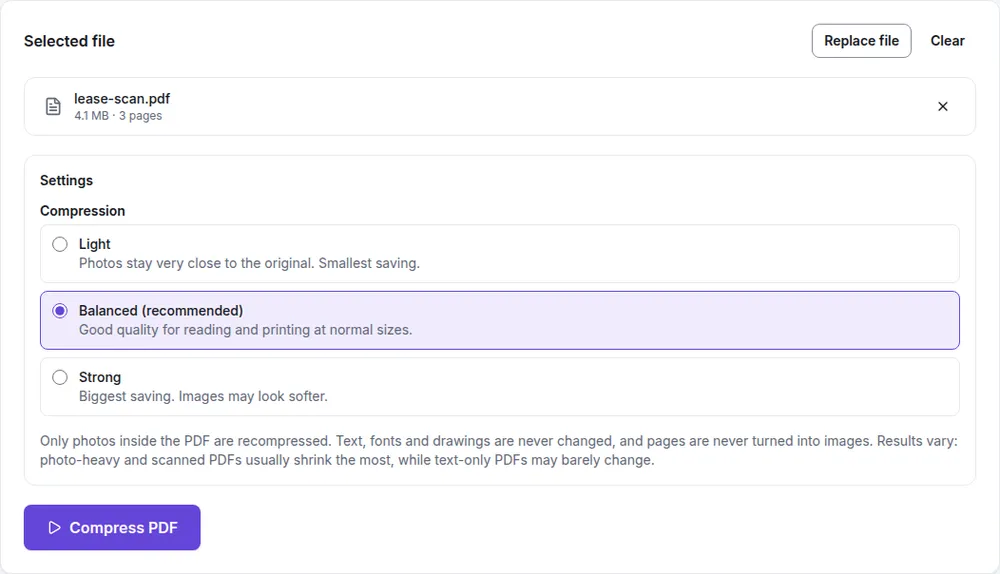
- Open Compress PDF and choose your file.
- Pick Light, Balanced or Strong. Balanced suits most documents. Strong gives the smallest file, but photos may look softer.
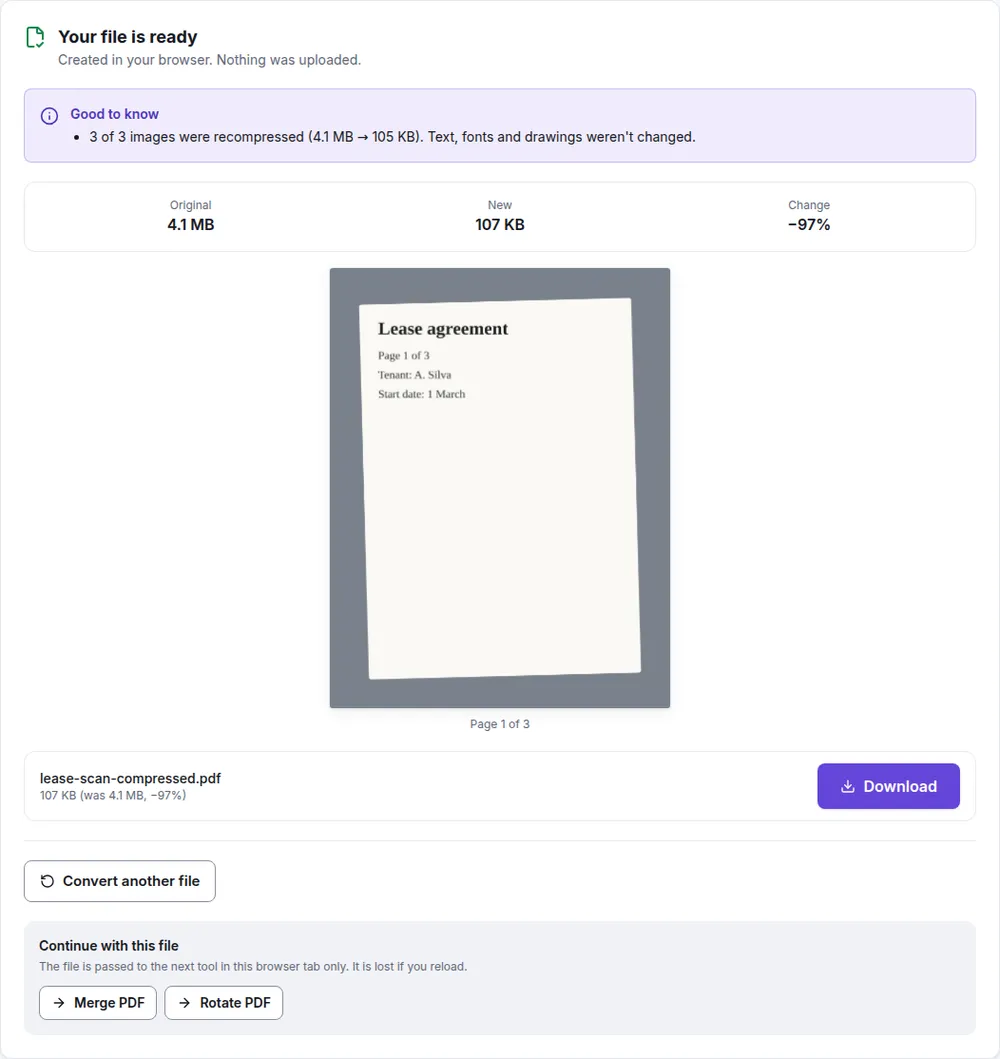
- Select Compress PDF. You'll see the original size, the new size and the change.
- Check the preview, then download the compressed copy.
What Filecon changes, and what it doesn't
- It recompresses the JPEG photos inside the PDF, and scales down very large ones. Text, fonts, drawings and links aren't touched, and pages are never turned into images, so text stays sharp and selectable.
- A photo is only replaced when the new version is clearly smaller. Transparent images, CMYK print images and some other image types are left exactly as they are.
- If the whole file wouldn't end up meaningfully smaller, you get your original back and we tell you so.
- Digitally signed PDFs aren't changed, because compressing them would break the signature. Password-protected PDFs can't be opened.
- Files up to 25 MB and 300 pages.
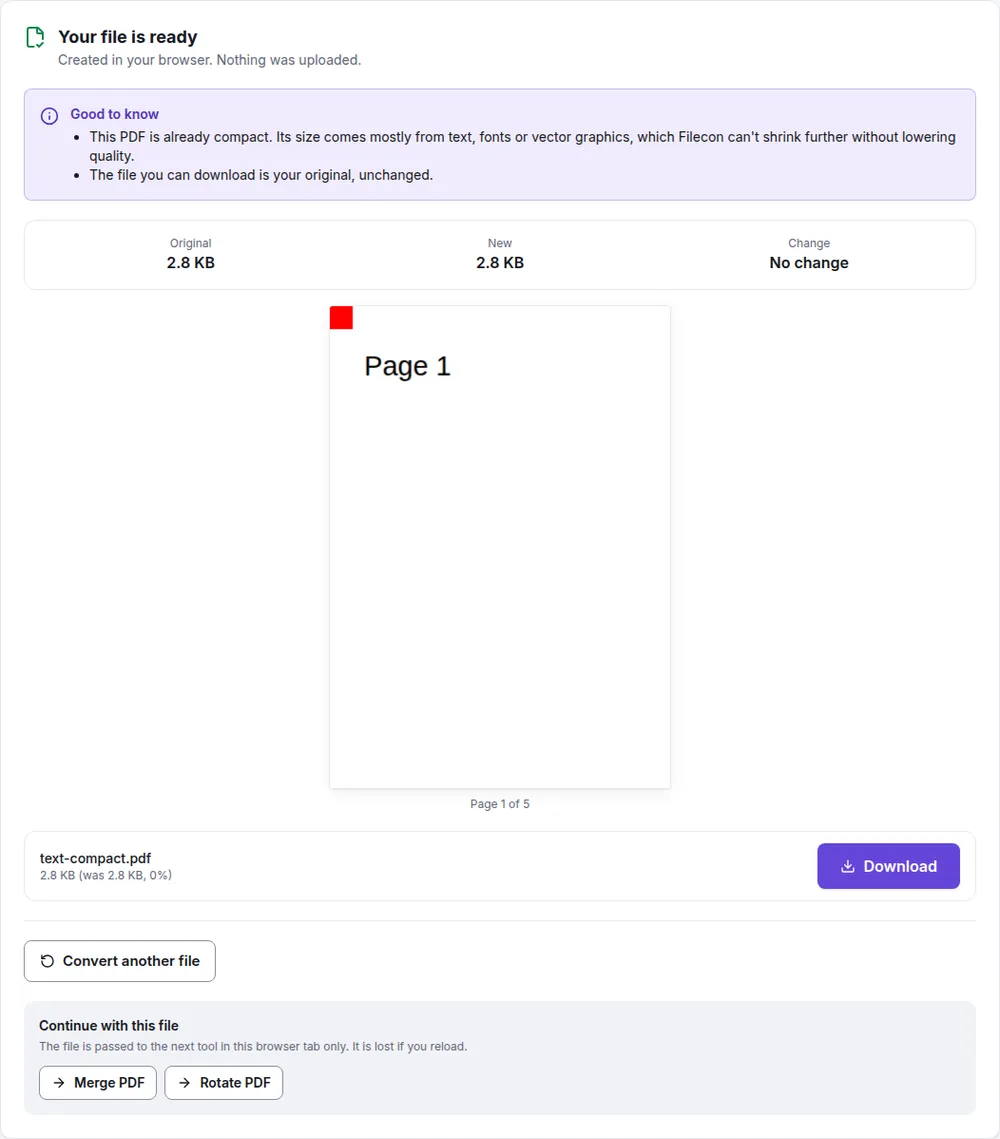
When a PDF is mostly text, Filecon says so instead of handing you a file that's barely different:
Built-in option on a Mac: Preview
macOS Preview has its own compression filter.
- Open the PDF in Preview.
- Choose File › Export.
- In the Quartz Filter menu, choose Reduce File Size.
- Save it under a new name so you keep the original.
It's free and fast, but be careful with the result. Apple's own help page warns that the compressed PDF may be of lower quality than the original, and the default filter can shrink images so much that scans become hard to read. Open the new file and zoom in before you send it. Recent macOS versions also show extra export options, such as optimizing images for screen, which may give you a better balance.
Re-export from the app that made it
If you created the PDF yourself, for example from Word, Pages, PowerPoint or a scanning app, going back to the source often works better than compressing afterward:
- Look for a smaller size, "minimum size" or "web" option in the app's PDF export or Save As settings.
- In scanning apps, choose a lower quality or black-and-white mode for text documents. Color scans of plain paperwork are much bigger than they need to be.
- Before exporting, resize or compress very large photos inside the document. Filecon's Image compressor and Image resizer can help.
Send fewer pages
Often the recipient doesn't need the whole file. A signed contract might only need the signature page, or an application might ask for just two pages of a bank statement.
- Extract PDF pages saves the pages you pick as one new PDF.
- Split PDF cuts the file into several parts, such as pages 1–10 and 11–20, which you can send in separate emails.
Our guide on extracting specific pages from a PDF covers both, plus built-in ways to do it on each device.
Share a link instead
For large files, a cloud link is often the simplest answer. Upload the PDF to Google Drive, OneDrive, iCloud Drive or Dropbox and send a sharing link. Gmail does this automatically for attachments over its limit, and Microsoft notes that OneDrive links in Outlook.com don't count toward the message size limit.
Why some PDFs won't shrink
- They're mostly text or vector graphics. These are already stored efficiently. Making them smaller would mean turning pages into lower-quality pictures, which Filecon doesn't do.
- The images are already compressed. If the PDF was exported with small, compressed images, there's little left to save.
- The images aren't JPEG photos. Some PDFs store pictures in other formats, such as lossless or print-oriented CMYK images. Filecon leaves those exactly as they are.
- Something else is inside. PDFs can carry embedded files, many embedded fonts or form data. Compression of images doesn't affect those.
- It's signed. Any change would invalidate a digital signature, so Filecon leaves signed PDFs alone. Ask the sender for a smaller copy or share a link.
Start with compression if your PDF is full of scans or photos, and check that the result still reads well. If the file is mostly text, or still too big, send only the pages that matter, split it, or share a link. And if you made the PDF yourself, exporting it again at a smaller size is often the cleanest fix.